Task manager tools help you capture work, choose what comes next, and track what gets done. Start with a simple task list for individual work, a habit-focused planner for routines and goals, or a team platform for shared projects. The right choice depends on what you actually manage and how you make decisions during a typical week. A tool that fits your work should make it easier to see what needs attention without creating extra upkeep. Begin with a small set of real tasks instead of moving your entire backlog at once. This guide shows you how to choose a category, compare suitable options, test a working setup, and connect daily actions to longer-term goals. You can then adjust your setup as your work changes.
Identify What Your Task Manager Must Handle
Task management software gives you a place to capture actions, organize them, and track their status. A task is a specific action, such as sending a proposal. A project is a larger result that takes several actions, such as preparing a proposal, reviewing it, and sending it to a client.
Before choosing a tool, list the work you need it to hold. That might include personal errands, recurring routines, independent professional work, or projects with shared ownership. The more people who need to see progress or take action, the more useful shared project features may be.
Write tasks so you can tell what to do. For example, “Send the revised proposal” could belong to a client project. Add a priority if it helps you decide what to do first, and a due date if there is a real deadline. A due date records when work is due. A reminder prompts you to pay attention at a particular time. A calendar block reserves time to work. These serve different purposes, so add each only when it helps.
A list makes actions easy to scan. A Kanban board shows status as work moves through stages, such as “To do,” “In progress,” and “Done.” Calendar and timeline views help with date-based decisions, but a calendar view does not automatically schedule every task. For project work, a Gantt chart adds a schedule-oriented view and can show how tasks depend on one another. You do not need project-management features for ordinary personal errands. See how to enter task details in a single phrase with smart task input.
Match the Tool Type to Your Planning Style
Choose the kind of tool that supports your regular planning decisions with the least upkeep. Use this matrix to match your work to a starting point and weigh the trade-off before adding more structure.
| Tool type | Decision it supports | Essential features | Suitable starting point | Trade-off |
|---|---|---|---|---|
| Simple personal task manager | What do I need to do, and what comes next? | Quick capture, recurring tasks, priorities, and reminders | Examine Todoist, Google Tasks, or Microsoft To Do | Shared project oversight may need more structure than personal lists provide. |
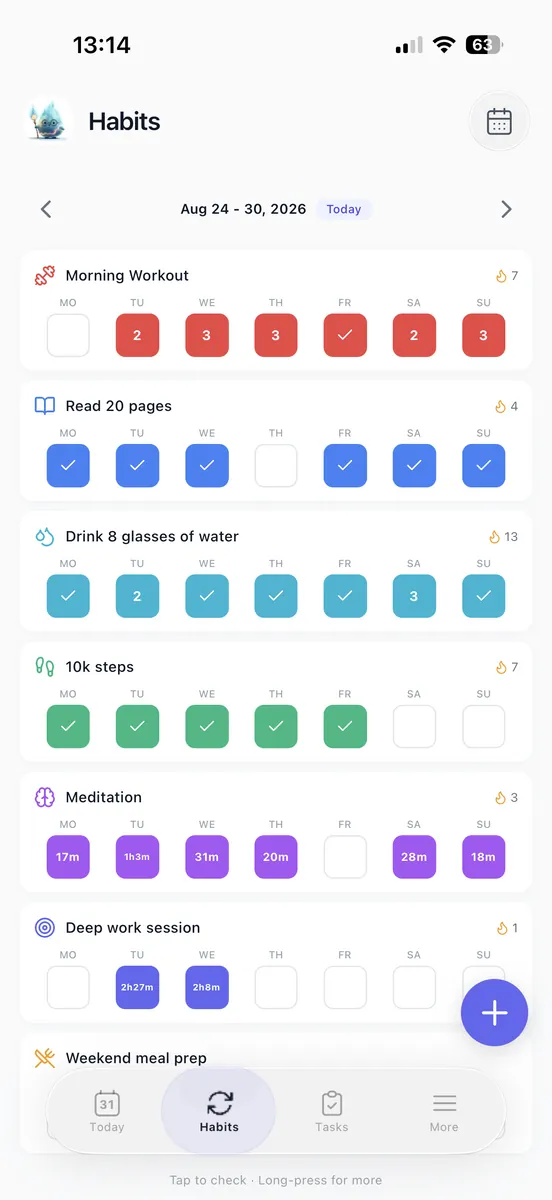
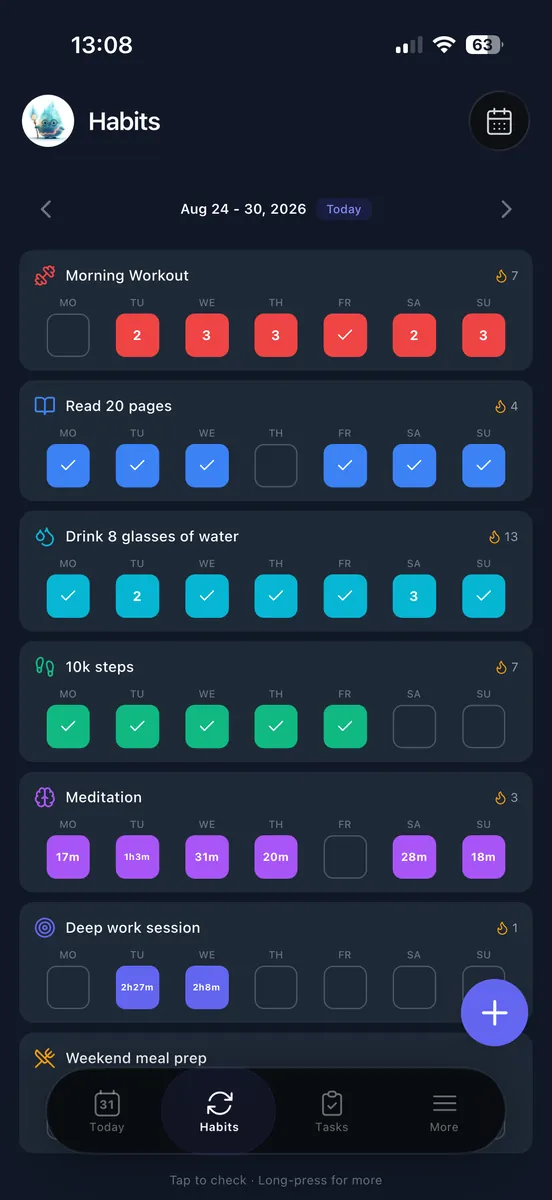
| Habit-focused planner | Which routines am I practicing, and how do they connect to my goals? | Flexible routine schedules, links to goals, and a history of check-ins | Start with a planner that keeps routine tracking and goal progress together. | Habits and one-time deliverables still need distinct entries, so you can see practice separately from project work. |
| Team project-management platform | Who owns each action, what is its status, and what depends on it? | Ownership, shared status, task dependencies, and project views | Try Trello for board-based work, Asana or Microsoft Planner for shared task coordination, ClickUp for configurable workflows, or Notion when tasks need to sit beside working documents. | Someone must maintain statuses, fields, and shared conventions. |
A personal task manager is a practical fit when most work belongs to you and a short list helps you act. A habit-focused planner makes more sense when recurring routines and goal tracking matter alongside one-time tasks. For a shared project, choose a platform that makes ownership and progress visible to everyone involved.
Move to a more complex category when a real requirement calls for it, such as assigning work to others or tracking task dependencies. If your current tool already supports the decisions you make, extra views and fields may only add maintenance.
 Loggd · by the makers of this blog
Track your habits, tasks and goals in one free app.
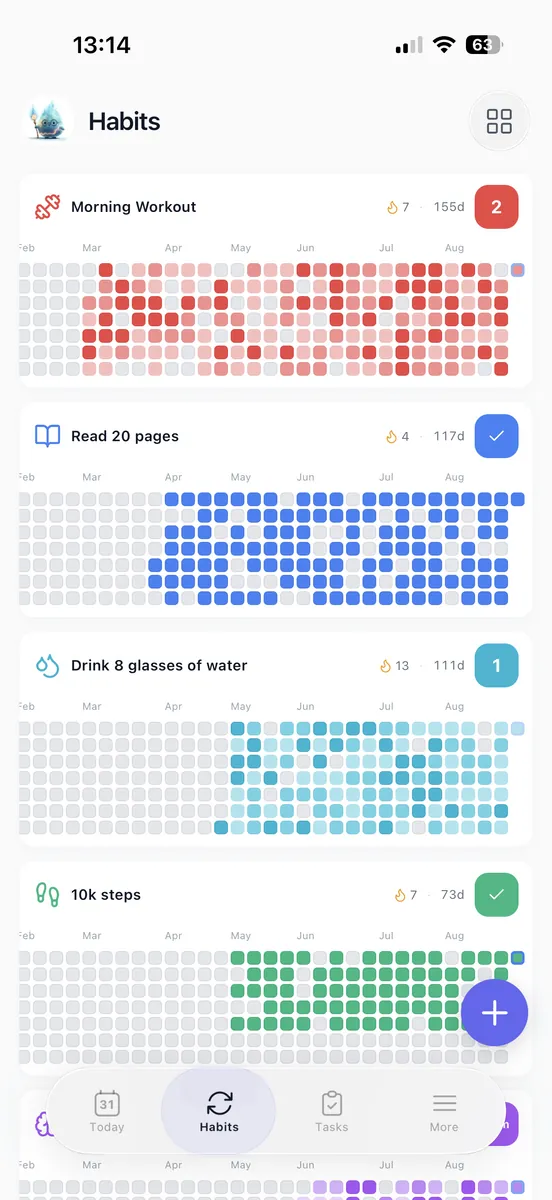
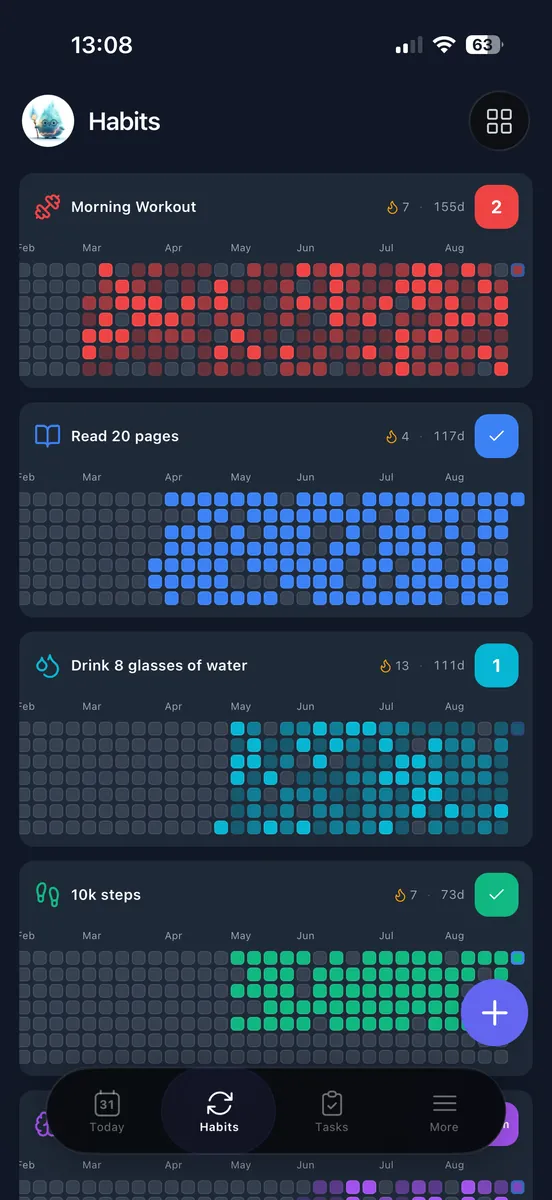
Every day you check off fills in a grid of your last 365 days, so you can see if you are getting better.




Free plan with no time limit. No credit card.


Compare Todoist and Google Tasks on Real Work
Start with Google Tasks if simple lists alongside your Google Calendar and email workflow cover your needs. Examine Todoist if you want more explicit task priorities and organizational controls. The better fit depends on how you capture work, sort it, and check dates across your devices.
| Need | Todoist | Google Tasks |
|---|---|---|
| Recurring tasks | Try the repeat pattern you need and check what happens after a late completion. | Try the repeat pattern you need and check what happens after a late completion. |
| Priorities | Offers explicit priority levels and organizational controls. | Uses a simpler list-and-star approach. |
| Calendar workflow | Test the calendar connection available in your setup and whether edits flow as expected. | Dated tasks can appear in Google Calendar. |
| Habit routines | Can hold a recurring task, but check whether a check-off gives you enough history. | Can hold a recurring task, but check whether a check-off gives you enough history. |
| Cross-device use | Test capture on your phone and editing on the computer you use. | Test capture on your phone and editing on the computer you use. |
To compare recurring tasks, create one with the exact pattern you need, such as every weekday or the first day of each month. Complete one occurrence late and see how the next one is handled. That behavior matters more than a general claim that a tool supports recurring tasks.
Try adding “Read after lunch” as a recurring task in either app. Decide whether checking it off is enough, or whether you want a separate history of habit practice.
For calendar use, dated Google Tasks can appear in Google Calendar. With Todoist, test the calendar connection available in your setup. Check whether it displays dates, carries changes back, or only sends them in one direction. Do not assume a connection works the same way in every setup.
Before choosing, capture a task on your phone, then edit it on your computer. Test reminders, rescheduling, and whether completion appears on both devices. A simple list may leave more sorting to you. More controls can help organize work, but they also create more choices to maintain.
Choose the Right Microsoft Task Setup
Microsoft To Do is a sensible starting point for individual lists and choosing daily work. Microsoft Planner is a starting point for assigning and tracking shared projects. Teams can provide access to planning work within team conversations, but it does not remove the need to decide where each task belongs.
Use To Do for personal next actions, recurring reminders, and selecting work for My Day. It can keep an individual’s daily list straightforward. Its trade-off is less shared-project structure than a platform designed to coordinate work across a team.
Use Planner when people need to see task owners, due dates, board status, and shared project progress. That structure can make responsibilities and status easier to follow. For an individual managing private tasks, though, the extra structure may take time to maintain without adding much value.
If you access planning work through Teams, decide where the task should live and who owns it. A task mentioned in a conversation still needs a clear home and an owner if other people are relying on it.
Use a simple routing rule: keep private preparation in your personal list, and put a deliverable someone else needs to follow in the shared project. For example, your notes for a meeting can stay personal, while the shared action to send the resulting proposal belongs where the team can track it.
Before transferring work from a workplace account, check which planning tools your organization makes available. Access and setup can vary by organization, so test the arrangement you will actually use.
Test a Small Setup Before Moving Everything
Try a candidate task manager over a working week before moving your full backlog. Use a small sample that includes different kinds of work, then check whether the setup supports the decisions you identified earlier.

-
Collect loose commitments in one temporary inbox. Gather tasks from scattered notes, messages, and memory before sorting them. If collecting them in one place feels difficult, use the brain dump tool to get the loose items down first.
-
Move a small working sample into the candidate tool. Include an errand, a work deliverable, a recurring routine, a task with a hard deadline, and something waiting on another person. This gives you a practical test of the kinds of entries you need without requiring a full transfer.
-
Write each task as a visible action. “Send the revised proposal” is easier to act on than “proposal.” Add a deadline only when the work has a real due date. Set a reminder when a prompt at a particular time will help you act, rather than adding one to every task.
-
Choose today’s priority work and leave the rest in its project or backlog. If it is unclear which items deserve attention first, use the priority decision matrix to sort them before scheduling. Keep future work available without making it part of today’s active list.
-
Run an ordinary day with the tool. Check fixed commitments, choose the next action, and reserve time for work that needs a block. Before you stop planning, reschedule unfinished work to a realistic date or remove it if it no longer matters.
-
Test the setup across the devices and actions you rely on. Capture a task on your phone, edit it on your desktop, and test reminder delivery, search, and rescheduling. Keep brief notes on friction, then decide whether the tool meets your requirements. Before moving a larger backlog, check current limits on the features you tested, access on the devices you need, and export options for your data.
Turn a Yearly Goal Into a Short Working List
Turn a yearly outcome into a short chain of work, not a year’s worth of daily tasks. The chain is: yearly outcome, quarterly project, weekly milestone, and daily next action. The CDC recommends action plans that are realistic, clear, and measurable.
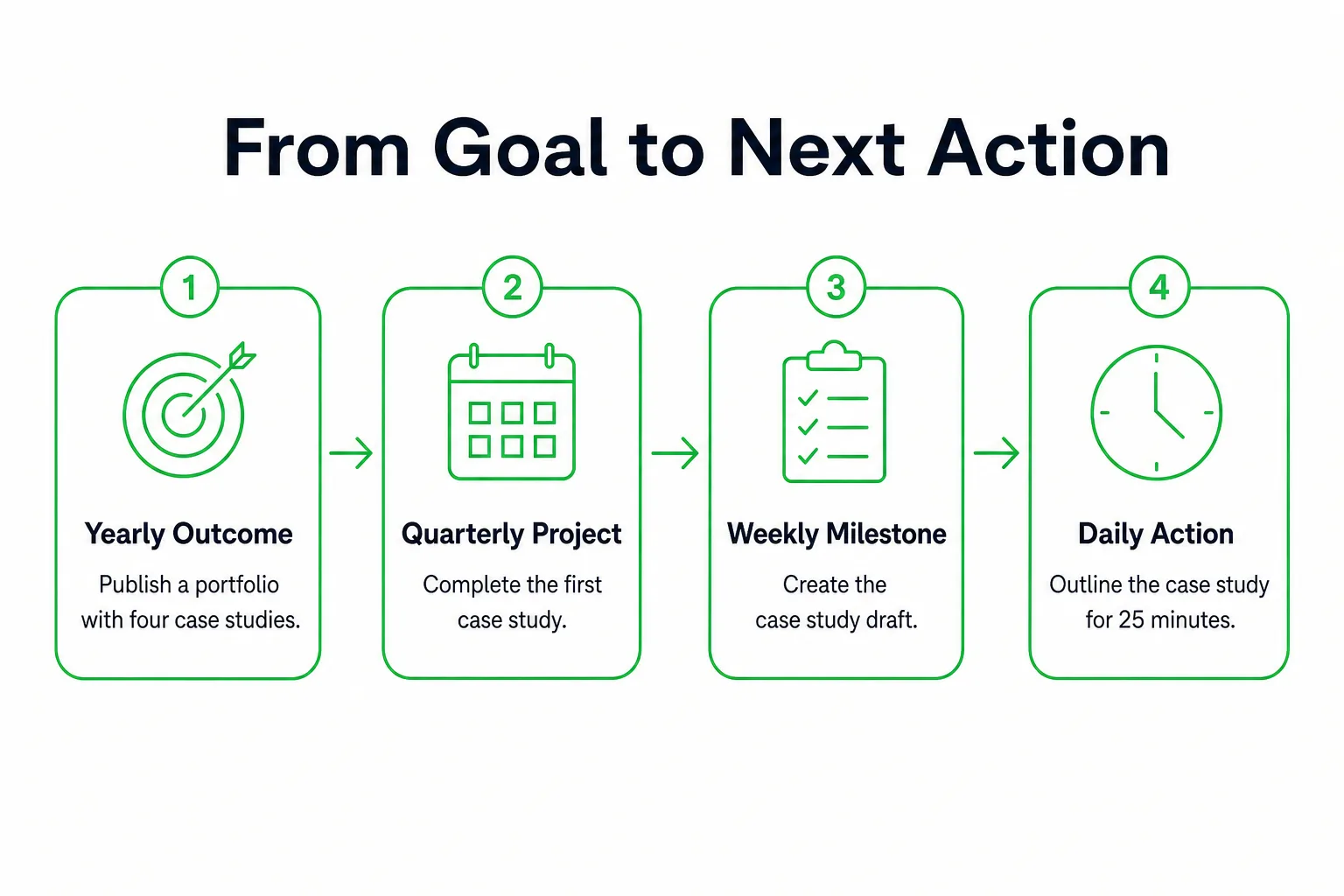
Say your yearly goal is to publish a portfolio with four case studies. The first-quarter project is to complete the first case study. This week’s milestone is to create its draft. Today’s action is to outline the problem, approach, and result for 25 minutes.
Keep each level where you will use it. Put “publish a portfolio with four case studies” in your goal record. Break the project into milestones you can review each week. Put “create the first case study draft” in this week’s selection. Put the 25-minute outline session in your working task list. Store reference material and future ideas outside that active daily list.
The four levels look like this:
- Yearly outcome: Publish a portfolio with four case studies.
- Quarterly project: Complete the first case study.
- Weekly milestone: Create its draft.
- Daily next action: Outline the problem, approach, and result for 25 minutes.
A recurring writing session can support the goal, but it is a habit, not a project deliverable. “Send the draft for review” is a project action because it moves a specific case study forward. Keeping both types of work visible helps you see the routine and the outcome without treating them as the same thing.
In Loggd, connect the task and its focus session to the goal so the work stays attached to the outcome. When you finish today’s outline, identify the next concrete action, such as drafting the problem section. Add that next action to the working list. Do not expand the entire year into daily tasks; let the next step come from the work you have actually completed.
Add Calendar Views and Automation Where Needed
Choose the view based on the decision you need to make, rather than adding every view by default.
A timeline or Gantt chart becomes useful when project work spans several dates, tasks depend on one another, and a changed date affects later work. A dependency means one task cannot proceed until another is complete. “Receive approval before sending the final file” is a real dependency. A preferred order, such as drafting one section before another because it feels easier, may help you plan, but it does not necessarily block the second task.
Protect a focused work period when a task needs sustained attention. Research summarized by the National Library of Medicine finds that task switching can slow work and increase errors. Use that finding to consider a work block for focused tasks; the calendar block reserves time, while the task manager keeps the action and its status visible.
For integrations, decide which tool is the source of truth for each task. Before relying on a calendar connection, test whether it displays a deadline, reserves time, or synchronizes edits. Those are different behaviors. Check what happens when you change a date in each place, and keep the task’s authoritative record clear.
Automation is worth testing when the same handoff happens repeatedly. For example, you could test a rule that creates a follow-up task after an intake item arrives. Check the trigger, where the new task goes, and how duplicates are handled. Review the results before using the automation more broadly.
If your work also needs shared files and communication alongside tasks, see the guide to cloud-based productivity and collaboration tools for a broader setup.
Simplify When the Tool Creates Extra Work
A task manager may be creating extra work if you update the same task in multiple places, cannot choose a next action without changing views, maintain fields you do not use, or keep separate notes because capturing a task feels cumbersome. Treat these as signs to inspect the setup, not as a reason to blame yourself for struggling with it.
Before removing structure, separate necessary team requirements from optional personal customization. A shared owner or status may matter to coworkers. A personal label or extra view may not change any decision you make. Keep the requirements that support real work and simplify the rest.
Try a small reset:
- Keep an inbox, active projects, and a working list.
- Hide views you do not use.
- Remove fields that do not affect a decision.
- Pause automations that add more upkeep than they save.
If the basic actions still require upkeep you do not want, test a simpler tool with the same sample you used earlier. Keep an archive or export before moving work. Transfer active commitments first, then decide what old reference material is worth carrying over.
A simpler daily workflow may mean giving up shared reporting, detailed task relationships, or custom views you rely on. Check team requirements before switching, and compare what you would lose with the work you would remove. If your backlog remains difficult after simplifying the software, why to-do lists fail can help you examine the list itself rather than add another feature.
Keep a History You Can Use at Year-End
Keep a little context as you work so your year-end review is more useful than a list of checkmarks. Leave completed tasks attached to their projects, record when you finish a milestone, and add a short note when a goal changes. That note can explain what shifted and what you decided to do next.
Recurring check-offs, project deliverables, and goal outcomes answer different questions. A check-off shows whether you practiced a routine. A deliverable shows what moved forward in a project. A goal record shows whether the outcome still matters and how it changed. Read them together rather than treating every completed item as equal evidence of progress.
At year-end, start by identifying the outcomes you finished. Then look at unfinished projects and decide whether to continue, revise, or close each one. Review your routine history to see what you practiced and what got in the way. Finally, choose what to continue, change, or stop in the year ahead. A full grid or a long list of completions does not tell the whole story; use the records to understand what mattered and what you want next.
Use Loggd's grid of your last 365 days to look back at daily check-offs, then compare those days with the milestones you recorded. If you need help deciding which areas deserve attention, the life audit tool helps you sort them into what to keep, change, or stop.
Close one outdated commitment, then write the next action for a goal you still want to pursue.